


Connector Profile Names and Account Linking
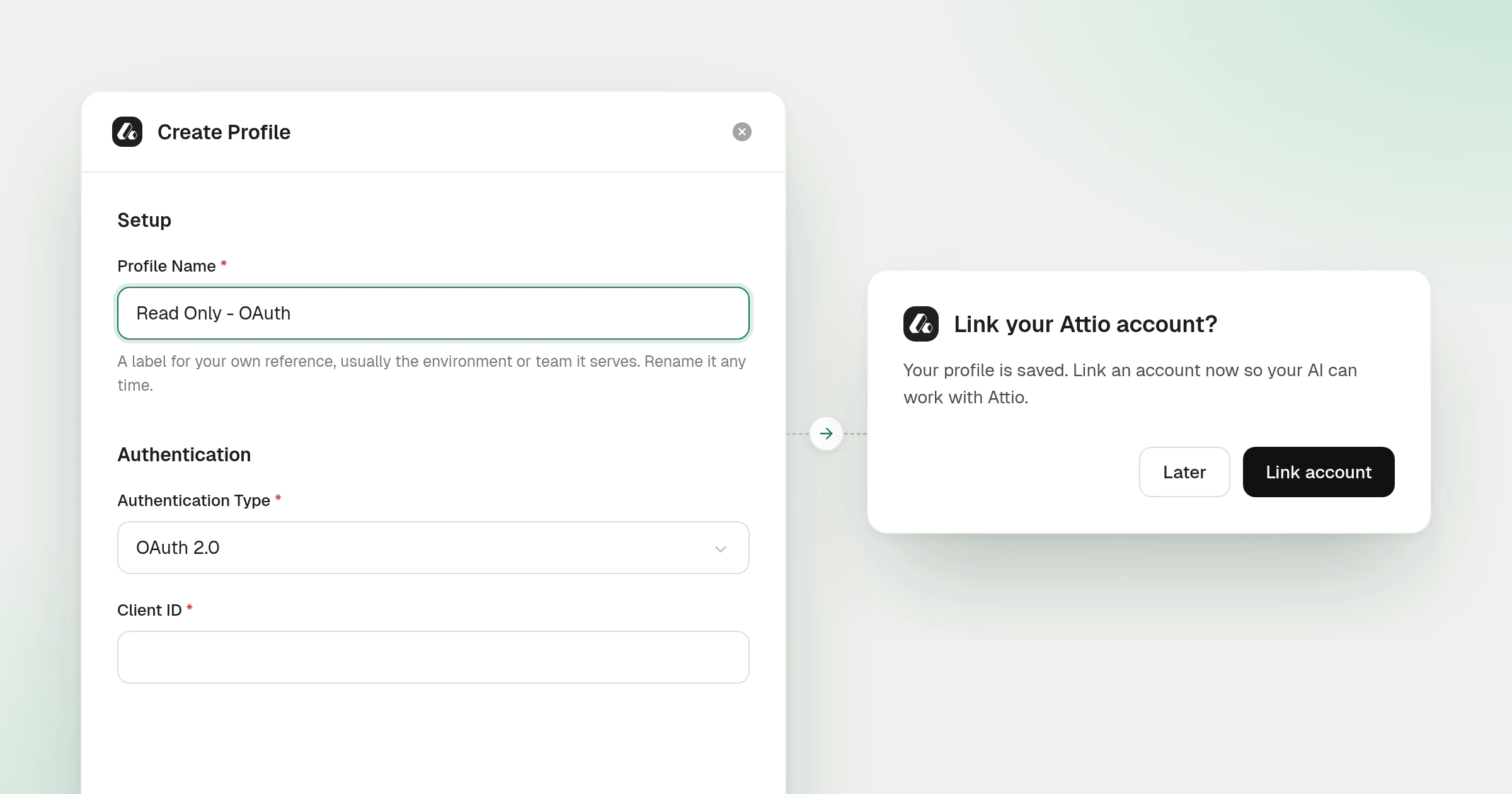
Creating a connector profile now fills in a name built from what the profile can do and how it signs in, such as Read Only - OAuth or Read and Write - API Key. Once the profile is saved, the dashboard asks whether to link an account through it straight away.
What’s new
- Suggested names. The Profile Name field starts with the profile’s access, worked out from the actions it has enabled, followed by a short form of its authentication type. Long labels drop their bracketed detail, so a profile on OAuth 2.0 - Client Credentials (Machine-to-Machine) is suggested as Read and Write - OAuth Client Credentials. Rename it any time.
- Names unique per connector. Two profiles on one connector can no longer share a name. A taken name is refused with a message, and the suggestion moves on to a numbered one, such as Read Only - OAuth 2.
- Link an account next. Saving a new profile opens a prompt to link an account through it, with Link account and Later. It appears when you create a profile from a connector’s page or from the Connectors list, for anyone allowed to link accounts.
- A retry when linking stops. If linking is cancelled or does not finish, the prompt comes back with Try again. Once an account is linked, the connector page switches to its Accounts tab.
Connector Profiles covers what a profile holds and when to add more than one, and Linking Accounts walks through the link flow. Profiles moved onto the connector page in the Connector Profiles entry, and a linked account opens in the account side panel.