
Box Integration for AI Agents
Connect your AI agent to 96 QA'd Box actions via MCP, A2A, or SDK, with agent authentication, tool-calling execution, and security built-in, plus 36 events to subscribe to.








Box AI Agent Actions
96 production-ready actions for your agent to do more on Box.
Box Webhook Events
36 real-time Box events your AI agent can subscribe to.
- File Uploaded Emitted when a file is uploaded to a monitored folder. Maps to Box trigger `FILE.UPLOADED`.
- File Previewed Emitted when a file is previewed. Maps to Box trigger `FILE.PREVIEWED`.
- File Downloaded Emitted when a file is downloaded. Maps to Box trigger `FILE.DOWNLOADED`.
- File Trashed Emitted when a file is moved to the trash. Maps to Box trigger `FILE.TRASHED`.
- File Deleted Emitted when a file is permanently deleted. Maps to Box trigger `FILE.DELETED`.
- File Restored Emitted when a file is restored from the trash. Maps to Box trigger `FILE.RESTORED`.
- File Copied Emitted when a file is copied. Maps to Box trigger `FILE.COPIED`.
- File Moved Emitted when a file is moved to a different folder. Maps to Box trigger `FILE.MOVED`.
- File Renamed Emitted when a file is renamed. Maps to Box trigger `FILE.RENAMED`.
- File Locked Emitted when a file is locked for editing. Maps to Box trigger `FILE.LOCKED`.
- File Unlocked Emitted when a file lock is released. Maps to Box trigger `FILE.UNLOCKED`.
- Folder Created Emitted when a new folder is created. Maps to Box trigger `FOLDER.CREATED`.
- Folder Renamed Emitted when a folder is renamed. Maps to Box trigger `FOLDER.RENAMED`.
- Folder Deleted Emitted when a folder is permanently deleted. Maps to Box trigger `FOLDER.DELETED`.
- Folder Trashed Emitted when a folder is moved to the trash. Maps to Box trigger `FOLDER.TRASHED`.
- Folder Restored Emitted when a folder is restored from the trash. Maps to Box trigger `FOLDER.RESTORED`.
- Folder Downloaded Emitted when a folder is downloaded. Maps to Box trigger `FOLDER.DOWNLOADED`.
- Folder Copied Emitted when a folder is copied. Maps to Box trigger `FOLDER.COPIED`.
- Folder Moved Emitted when a folder is moved to a different location. Maps to Box trigger `FOLDER.MOVED`.
- Comment Created Emitted when a comment is added to a file. Maps to Box trigger `COMMENT.CREATED`.
- Comment Updated Emitted when a comment is edited. Maps to Box trigger `COMMENT.UPDATED`.
- Comment Deleted Emitted when a comment is deleted. Maps to Box trigger `COMMENT.DELETED`.
- Collaboration Created Emitted when a collaboration (shared access) is created on a file or folder. Maps to Box trigger `COLLABORATION.CREATED`.
- Collaboration Accepted Emitted when a collaboration invitation is accepted. Maps to Box trigger `COLLABORATION.ACCEPTED`.
- Collaboration Removed Emitted when a collaboration is removed from a file or folder. Maps to Box trigger `COLLABORATION.REMOVED`.
- Shared Link Created Emitted when a shared link is created on a file or folder. Maps to Box trigger `SHARED_LINK.CREATED`.
- Shared Link Deleted Emitted when a shared link is removed. Maps to Box trigger `SHARED_LINK.DELETED`.
- Shared Link Updated Emitted when a shared link's settings are changed. Maps to Box trigger `SHARED_LINK.UPDATED`.
- Task Assignment Created Emitted when a task is assigned to a user on a file. Maps to Box trigger `TASK_ASSIGNMENT.CREATED`.
- Task Assignment Updated Emitted when a task assignment is updated (completed, rejected, etc.). Maps to Box trigger `TASK_ASSIGNMENT.UPDATED`.
- Metadata Instance Created Emitted when metadata is applied to a file or folder. Maps to Box trigger `METADATA_INSTANCE.CREATED`.
- Metadata Instance Updated Emitted when metadata on a file or folder is updated. Maps to Box trigger `METADATA_INSTANCE.UPDATED`.
- Metadata Instance Deleted Emitted when metadata is removed from a file or folder. Maps to Box trigger `METADATA_INSTANCE.DELETED`.
- Collaboration Rejected Emitted when a collaboration invitation is rejected. Maps to Box trigger `COLLABORATION.REJECTED`.
- Collaboration Updated Emitted when a collaboration's role or permissions are changed. Maps to Box trigger `COLLABORATION.UPDATED`.
- Webhook Deleted Emitted when a webhook subscription is deleted. Maps to Box trigger `WEBHOOK.DELETED`.
Do More, Build Less
Integration Infrastructure for Box AI Agents




"What impressed us most about StackOne is its ambition and clarity. They're creating infrastructure that modern software and the entire AI agent ecosystem can rely on. The depth of secure integrations, the pace of delivery, and the team's foresight into AI's future uniquely position StackOne to redefine this category."


Luna Schmid, Partner at GV
"We've been impressed by how quickly and deeply StackOne integrates with complex enterprise systems -- and now, with their focus on agent-to-agent interoperability, they're unlocking even more powerful use cases for customers. StackOne delivers all of the above in a universal layer -- without compromise."


Barbry McGann, SVP at Workday Ventures




Product Teams Love Building Agent Integrations With StackOne
A US medical research organisation



Scroll to explore
More Cloud Storage Integrations Like Box
94+ actions
89+ actions
64+ actions
46+ actions
30+ actions
27+ actions
19+ actions
Box AI agent integration resources
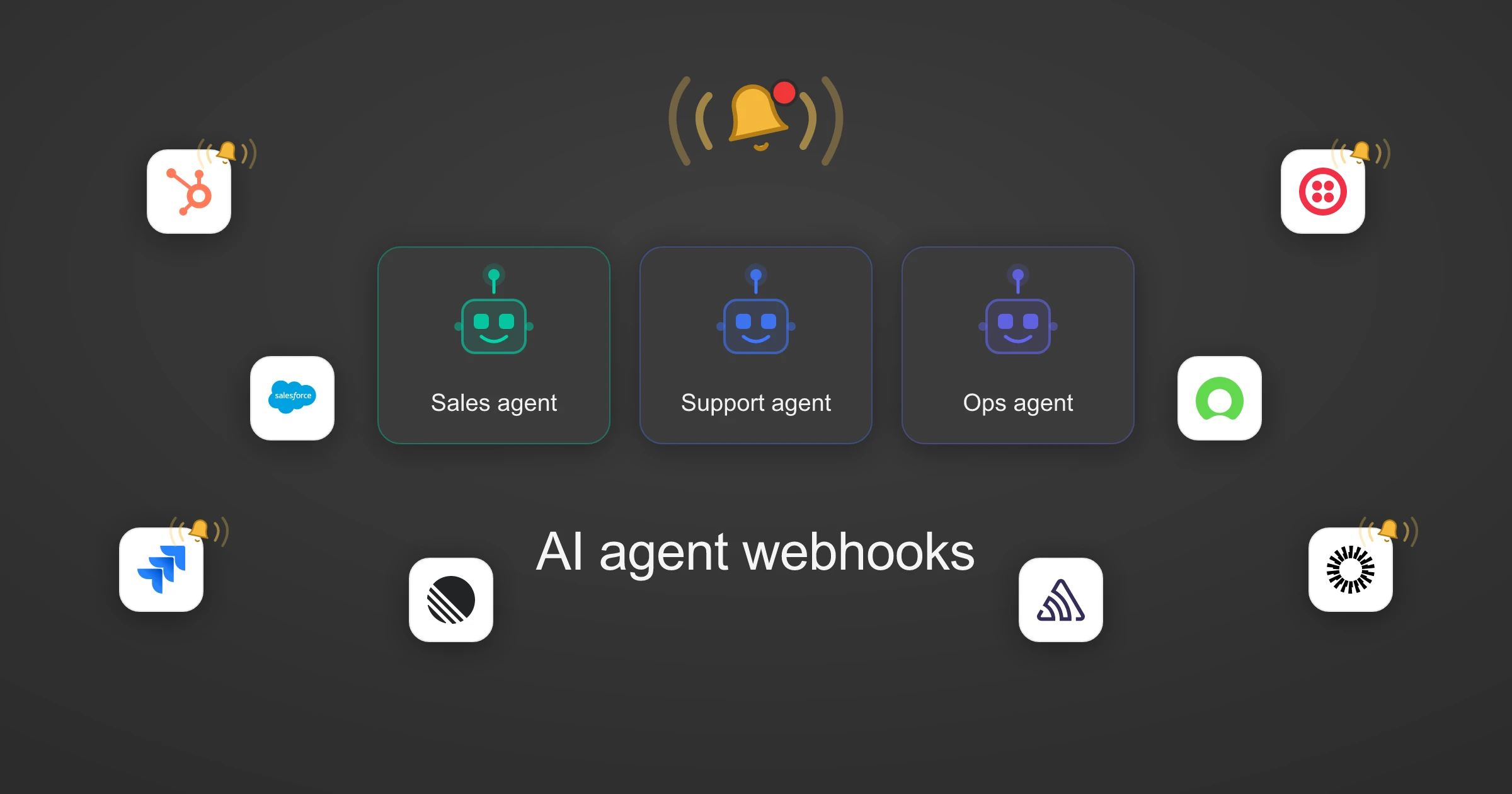
Webhooks for AI agents: why agentic workflows need them purpose-built
AI agents can act the moment a system changes, using webhooks. But webhooks built for software hit three limits in agentic workflows. Here is how to fix each.
7 min read
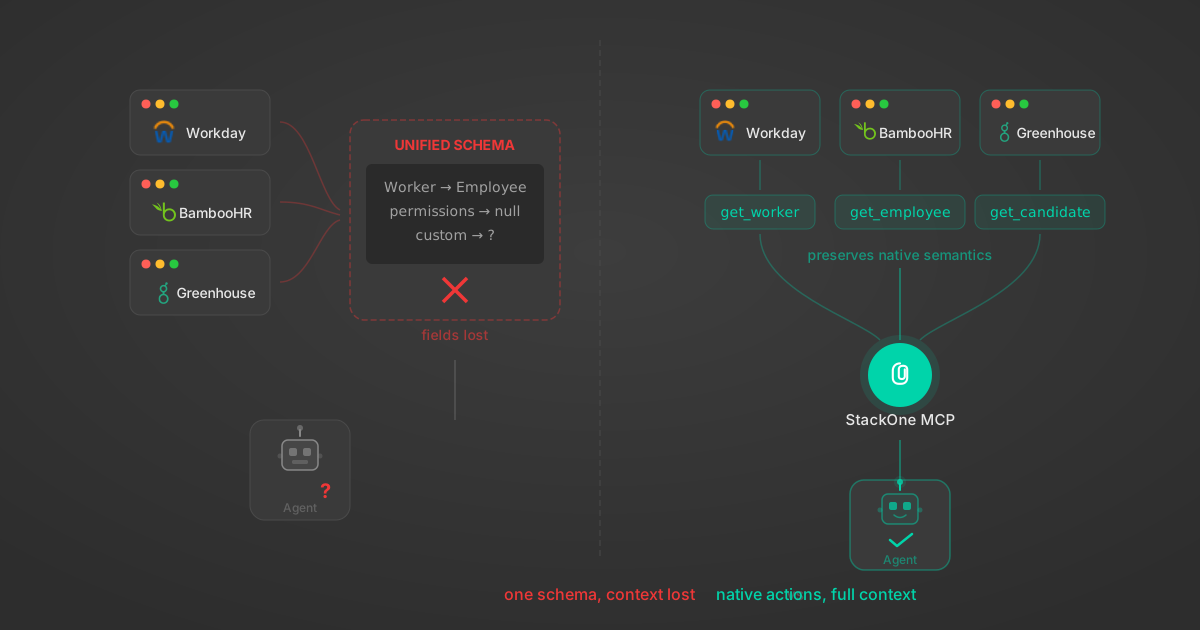
Unified API Limitations for AI Agent Integration: 7 Ways They Break
Unified APIs work for traditional software but fail AI agents in specific, measurable ways. Here are 7 problems we found after building both approaches, with examples from Workday, Greenhouse, Jira, and Salesforce.
14 min
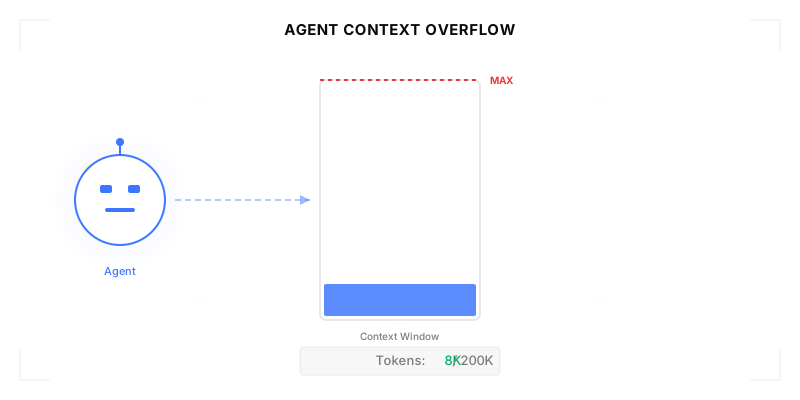
Agentic Context Engineering: Why AI Agents Kill Their Own Context Windows
AI agents exceed their context windows without knowing it. Six failure patterns and seven survival architectures for agentic context engineering.
15 min
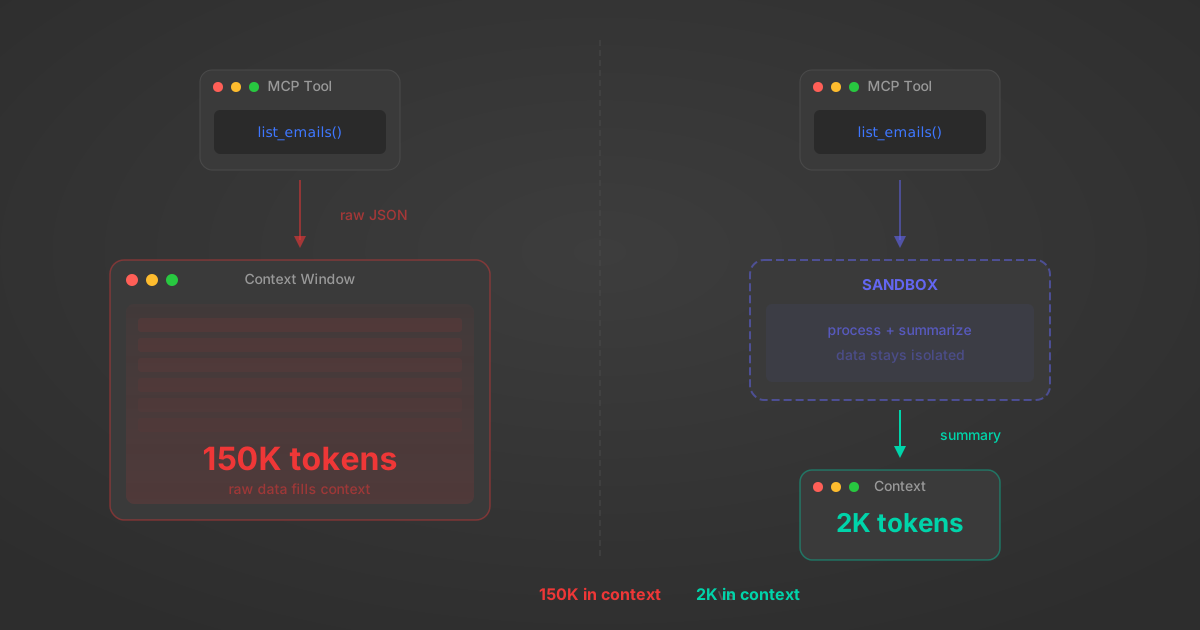
MCP Code Mode: Keeping Tool Responses Out of Agent Context
Anthropic's code_execution processes data already in context. Custom MCP code mode keeps raw tool responses in a sandbox. 14K tokens vs 500.
11 min
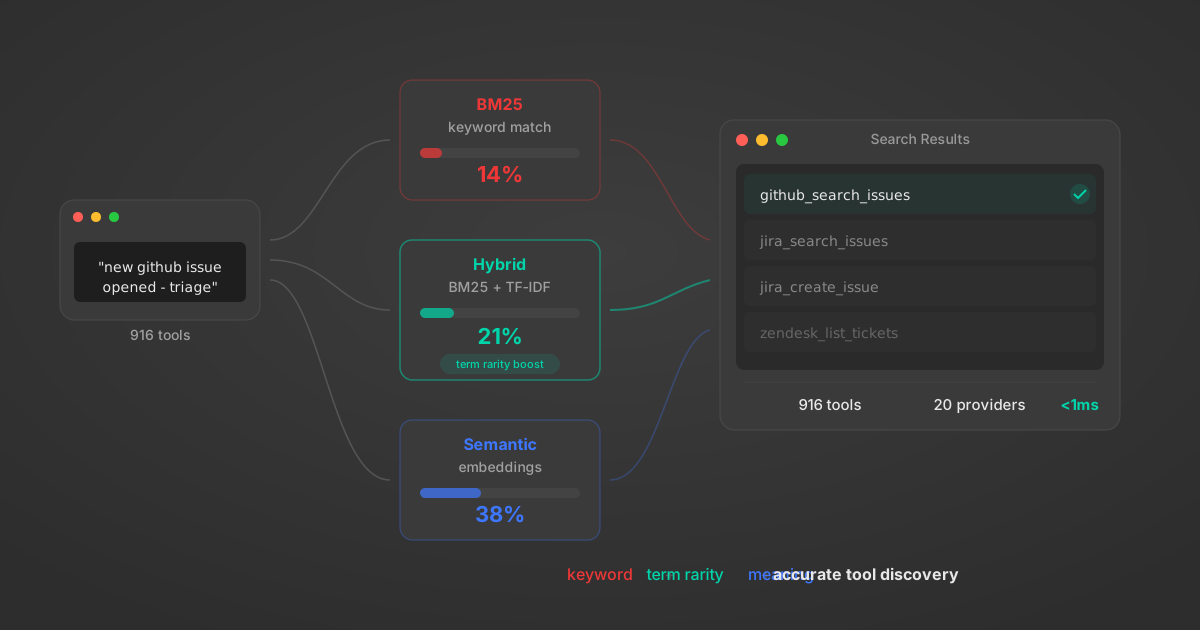
Comparing BM25, TF-IDF, and Hybrid Search for MCP Tool Discovery
Benchmarking BM25, TF-IDF, and hybrid search for MCP tool discovery across 916 tools. The 80/20 TF-IDF/BM25 hybrid hits 21% Top-1 accuracy in under 1ms.
10 min
Box integration FAQ
Do I need to create my own auth app to connect Box to StackOne?
Put your AI agents to work
All the tools you need to build and scale AI agent integrations, with best-in-class connectivity, execution, and security.