
Box MCP Server
for AI Agents
Connect your AI agent to StackOne's Box MCP server and give it 96 MCP tools out of the box. Auth, tool execution, and security all managed.
 StackOne






Coverage
96 Agent Actions
Create, read, update, and delete across Box — and extend your agent's capabilities with custom actions.

Authentication
Agent Tool Authentication
Per-user OAuth in one call. Your Box MCP server gets session-scoped tokens with zero credentials stored on your infra.
Agent Auth →
Security
Agent Protection
Every Box tool response scanned for prompt injection in milliseconds — 88.7% accuracy, all running on CPU.
Prompt Injection Defense →
Performance
Max Agent Context. Min Cost.
Free up to 96% of your agent's context window to enhance reasoning and reduce cost, on every Box call.
Tools Discovery →What is the Box MCP Server?
A Box MCP server lets AI agents read and write Box data through the Model Context Protocol — Anthropic's open standard for connecting LLMs to external tools. StackOne's Box MCP server ships with 96 pre-built actions, fully extensible via the Connector Builder — plus managed authentication, prompt injection defense, observability, and agent execution runtime. Connect it from MCP clients like Claude Desktop, Claude Code, Cursor, Goose, and VS Code, or from agent frameworks like OpenAI Agents SDK, LangChain, and Vercel AI SDK.
All Box MCP Tools
Every action from Box's API, ready for your agent. Create, read, update, and delete — scoped to exactly what you need.
Collaborations
- Create Collaboration
Add a collaborator (user or group) to a file or folder with a specific role (editor, viewer, previewer, uploader, previewer uploader, viewer uploader, co-owner). You can identify users by email (accessible_by.login) or user ID (accessible_by.id) — no need to look up the user ID first if you have their email. Cannot add the folder/file owner as a collaborator (returns 400). The is_access_only option is only supported for folder collaborations, not files. The expires_at option requires the enterprise admin to enable the "Automatically remove invited collaborators" setting.
- Get Collaboration
Retrieve details of a specific collaboration by its ID, including the collaborator (user or group), their role, the item (file or folder) they have access to, and the collaboration status. Use list_folder_collaborations or list_file_collaborations to find collaboration IDs.
- Update Collaboration
Update a collaboration's role or path visibility. Requires the authenticated user to be the folder owner, co-owner, or enterprise admin. Returns 403 if the user lacks permission to modify the collaboration.
- Remove Collaboration
Remove a collaboration, revoking the user's or group's access to the shared file or folder. Requires the collaboration_id, which can be obtained from list_folder_collaborations or list_file_collaborations.
Comments
- Create Comment
Add a comment to a file
- Get Comment
Retrieve information about a comment
- Update Comment
Update a comment's message
- Delete Comment
Remove a comment
Files
- Copy File
Copy a file to another folder
- Upload File
Upload a new file
- Update File
Update a file's name, description, parent folder (to move it), shared link, tags, or lock status. To lock a file, provide a lock object with access='lock'. Unlocking is not supported through this action — to unlock a file, use the Box web UI or the Box API directly.
- Delete File
Delete a file and move it to trash
File Versions
- Upload File Version
Upload a new version of an existing file by providing the file_id, base64-encoded file content (file_content), and a filename (file_name). All three parameters are required. For files up to 50MB only — use chunked upload for larger files.
- Get File Version
Retrieve a specific version of a file
- List File Versions
List all versions of a file
- Delete File Version
Delete a specific file version
Folders
- Create Folder
Create a new folder
- Copy Folder
Copy a folder to another folder
- Update Folder
Update a folder's information
- Delete Folder
Delete a folder and move it to trash
Groups
- Create Group
Create a new enterprise group with optional invitation and member visibility settings. Requires enterprise admin or co-admin role — the manage_groups OAuth scope alone is not sufficient, the authenticated user must have admin-level privileges in the Box Admin Console.
- List Groups
List all enterprise groups, optionally filtered by name prefix. Returns group IDs, names, and basic details. Use filter_term to search for groups whose name starts with a specific string. This is a read-only listing operation that requires manage_groups scope.
- Get Group
Retrieve detailed information about a specific group by its ID, including name, description, invitability_level, and member_viewability_level. Requires admin-level permissions or group membership — note this requires stronger permissions than list_groups, which may succeed even when get_group returns 403.
- Update Group
Update a group's name, description, invitation settings, or member visibility. Requires enterprise admin or co-admin permissions — the authenticated user must have admin-level privileges, not just manage_groups scope.
- Delete Group
Permanently delete an enterprise group. This action cannot be undone. Requires enterprise admin or co-admin permissions.
Group Memberships
- List Group Memberships
List all members of a specific group, including their user IDs, roles (member or admin), and membership IDs. The membership ID is needed for update_group_membership and remove_user_from_group operations.
- Update Group Membership
Update a user's membership in a group
Unified Groups
- List Unified Groups
List unified groups in Box.
- Get Unified Group
Get a unified Box group by ID.
Unified Organizations
- List Unified Organizations
List unified organizations in Box.
- Get Unified Organization
Get a unified Box organization by ID.
Unified Roles
- List Unified Roles
List unified roles in Box.
- Get Unified Role
Get a unified Box role by ID.
Unified Users
- List Unified Users
List unified users in Box.
- Get Unified User
Get a unified Box user by ID.
File Metadata Instances
- Create File Metadata Instance
Apply a metadata template instance to a file. Requires the file_id, scope (e.g. 'enterprise_1452824910' or 'global'), template_key, and a metadata object with field values. Even if all template fields are optional, the metadata object must contain at least one key-value pair — an empty object {} is rejected with 400 Bad Request. Returns 409 Conflict if this template is already applied to the file (use update_file_metadata to modify existing metadata).
- List File Metadata Instances
List all metadata instances on a file
- Get File Metadata Instance
Retrieve a specific metadata instance on a file
- Update File Metadata Instance
Update a metadata instance on a file
- Delete File Metadata Instance
Remove a metadata instance from a file
Folder Metadata Instances
- Create Folder Metadata Instance
Apply a metadata template instance to a folder. Requires the folder_id, scope, template_key, and a metadata object with at least one key-value pair. Returns 409 Conflict if this template is already applied to the folder — use update_folder_metadata to modify existing metadata, or delete_folder_metadata first to remove and re-apply.
- Get Folder Metadata Instance
Retrieve a specific metadata instance on a folder
- List Folder Metadata Instances
List all metadata instances on a folder
- Update Folder Metadata Instance
Update a metadata instance on a folder
- Delete Folder Metadata Instance
Remove a metadata instance from a folder
Metadata Templates
- Create Metadata Template
Create an enterprise metadata template that can then be applied to files and folders.
- List Metadata Templates
List all metadata templates
- Get Metadata Template
Retrieve a metadata template
Tasks
- Create Task
Create a review or completion task on a file. The task is created unassigned — use assign_task afterwards to assign it to users. Accepts an optional due date in ISO 8601 format (e.g. "2025-12-31T23:59:00+00:00"). Use +00:00 for UTC timezone offset, not -00:00.
- Get Task
Retrieve information about a task
- Update Task
Update a task's message, due date, action type, or completion rule. Every update body must include message, so pair it with any other field being changed. Assign at least one user before changing completion_rule.
- Delete Task
Remove a task
Task Assignments
- List Task Assignments
List assignments for a task
- Get Task Assignment
Retrieve information about a task assignment
- Update Task Assignment
Update a task assignment's resolution state or message. For review-type tasks, resolution_state (approved or rejected) is required — sending only a message without resolution_state returns 403. Only the task creator, the assignee, or enterprise admins can update an assignment.
- Delete Task Assignment
Remove a task assignment
Users
- Create User
Create a new managed user account in the enterprise. Requires enterprise admin or co-admin role with manage_managed_users scope. The login email must use a real domain (not @example.com). Returns 403 Forbidden if the authenticated account lacks admin privileges.
- Get User
Retrieve information about a user
- Update User
Update a user's information
- Delete User
Delete a user from the enterprise
User Avatars
- Get User Avatar
Retrieve a user's avatar image. Returns 404 if no custom avatar has been uploaded, even when the user profile contains an avatar_url field (which points to a default placeholder until a real image is uploaded). Use this to check whether a user has a custom profile picture.
- Delete User Avatar
Delete a user's avatar image
Webhooks
- List Webhooks
Retrieve all webhooks for the authenticated application
- Get Webhook
Retrieve a specific webhook by ID
Other (32)
- Add User To Group
Add a user to an enterprise group as a member or admin. Requires enterprise admin or co-admin permissions. Provide the user ID and group ID as nested objects. Returns 403 if the authenticated account lacks admin-level privileges for group membership management.
- Create Upload Session
Create a chunked upload session for large files
- List Pending Collaborations
List all pending collaborations for a user
- List Group Collaborations
List all file and folder collaborations for a specific group, showing what content the group has access to and with what role. Requires enterprise admin or co-admin permissions — having manage_groups scope alone is not sufficient, the authenticated user must also have admin-level privileges in the Box Admin Console.
- List Folder Collaborations
List all collaborations on a folder, showing which users and groups have access and their roles (editor, viewer, co-owner, etc.). Returns both pending and active collaborations. Use the collaboration_id from the response for update_collaboration or delete_collaboration operations.
- List File Collaborations
List all collaborations on a file, showing which users and groups have access and their roles. Returns both pending and active collaborations. Use the collaboration_id from the response for update_collaboration or delete_collaboration operations.
- Get User And Enterprise Events
List user and enterprise events
- Get File Information
Retrieve information about a file
- Get File Thumbnail
Retrieve a thumbnail of a file
- Search
Search Box for files, folders and web links by name or content.
- List File Comments
List all comments on a specific file by its file_id. Use list_folder_items first to find the file_id if you only have the filename. Returns comment text, author, creation date, and reply information.
- List File Tasks
List tasks on a file
- Get Trashed File
Retrieve information about a file in trash
- List Folder Items
List items in a folder. Use folder_id "0" to list items in the root folder.
- Get Folder Information
Retrieve information about a folder
- Get Trashed Folder
Retrieve information about a folder in trash
- List Trashed Items
List all items in trash
- Get Unified Credentials
Get the current Box connection's unified credentials and identity.
- List Unified Resource Types
List unified resource types in Box.
- List Unified Resource Users
List unified resource users in Box.
- Query By Metadata
Search for files and folders that have specific metadata values applied. This is a read-only search/query tool — it does NOT create, update, or delete metadata. Use create_file_metadata, update_file_metadata, or delete_file_metadata for write operations. Uses SQL-like syntax to filter by metadata field values.
- Get Current User
Retrieve the profile of the currently authenticated user, including their user ID, name, email, avatar URL, and enterprise info. Does not require admin permissions — any authenticated user can call this. Use this to get the current user's ID when you need it for other operations.
- List Enterprise Users
List all enterprise users with their IDs, names, and email addresses. Requires enterprise admin or co-admin permissions with manage_managed_users scope. Use filter_term to search by name or email prefix. Use user_type to filter by managed, external, or all users. If you already have a user's email address (e.g. for task assignment), you can pass it directly to assign_task via assign_to.login instead of looking up their user ID here.
- Remove User From Group
Remove a user from a group
- Unlock File
Remove the lock from a file so other users can move, rename or change it again.
- Promote File Version
Promote a previous file version to be the current version
- Restore File Version
Restore a previously deleted file version from the file's version history. This does NOT restore files from the trash — use restore_file for that. Requires the file_id and the file_version_id of the deleted version (obtainable from list_file_versions). Only works on premium Box accounts that support version tracking.
- Restore File From Trash
Restore a file from trash
- Permanently Delete File
Permanently delete a trashed file
- Restore Folder From Trash
Restore a folder from trash
- Permanently Delete Folder
Permanently delete a trashed folder
- Assign Task
Assign a task to a user by user ID or email address. The user receives a notification. You can use either assign_to.id (user ID) or assign_to.login (email address) — you do not need to look up the user ID first if you already have their email.
Set Up Your Box MCP Server in Minutes
One endpoint. Any framework. Your agent is talking to Box in under 10 lines of code.
Agent Frameworks


 JSON
JSON{
"mcpServers": {
"stackone": {
"command": "npx",
"args": [
"-y",
"mcp-remote@latest",
"https://api.stackone.com/mcp?x-account-id=<account_id>",
"--header",
"Authorization: Basic <YOUR_BASE64_TOKEN>"
]
}
}
}Check More Cloud Storage MCP Servers
94+ actions
89+ actions
64+ actions
46+ actions
30+ actions
27+ actions
19+ actions
Platform Resources
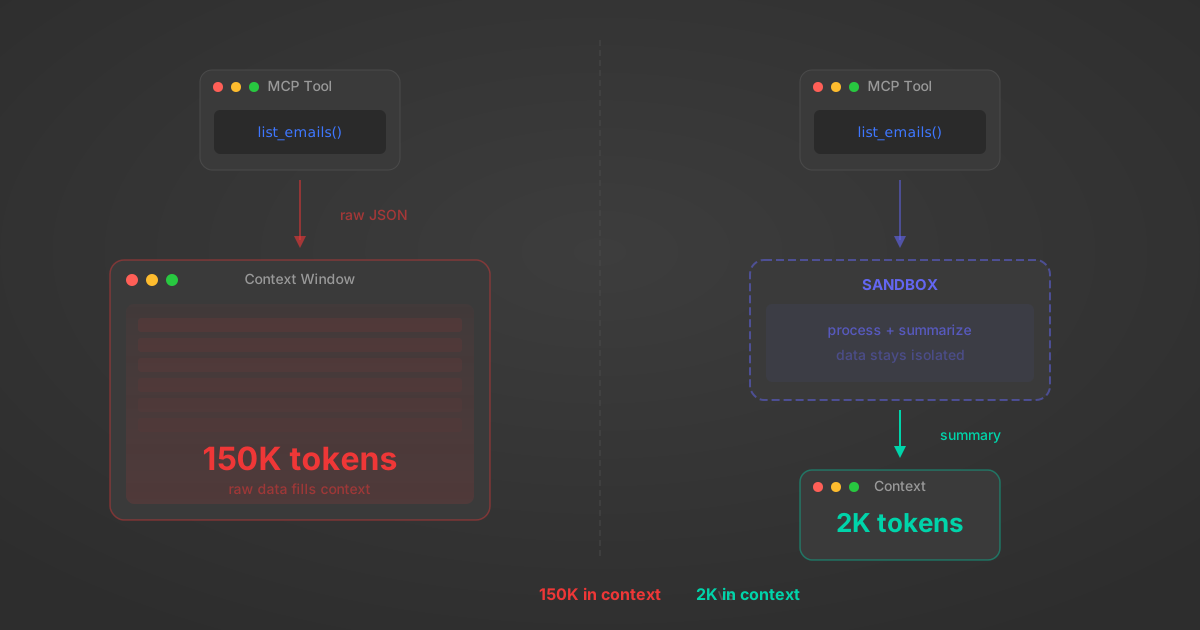
MCP Code Mode: Keeping Tool Responses Out of Agent Context
Anthropic's code_execution processes data already in context. Custom MCP code mode keeps raw tool responses in a sandbox. 14K tokens vs 500.
11 min
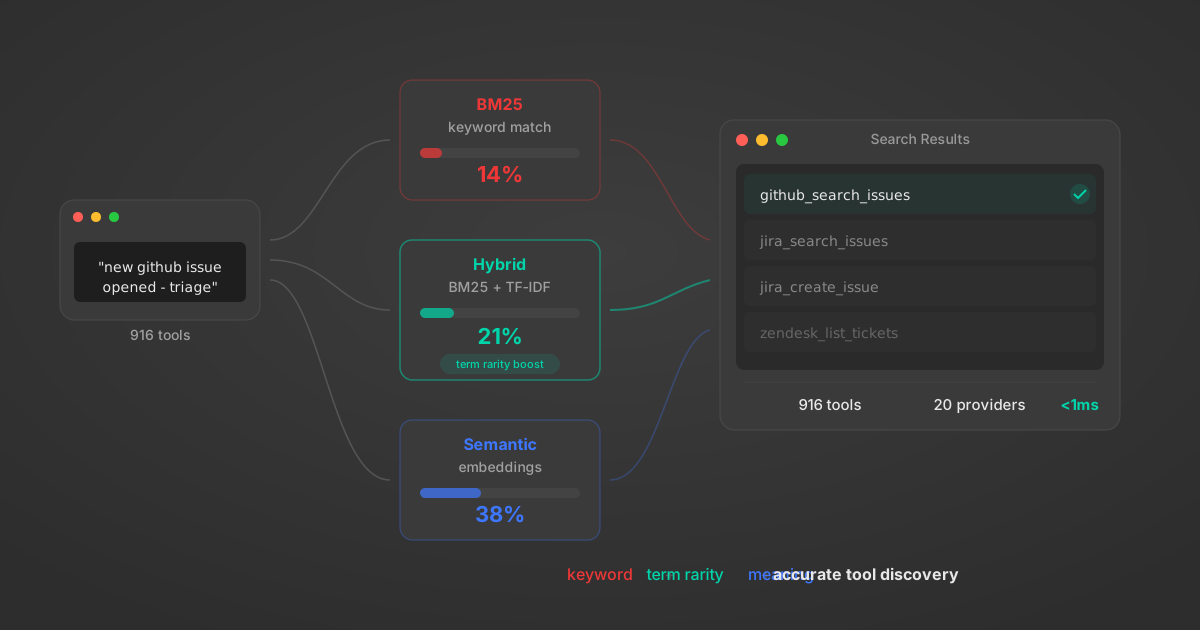
Comparing BM25, TF-IDF, and Hybrid Search for MCP Tool Discovery
Benchmarking BM25, TF-IDF, and hybrid search for MCP tool discovery across 916 tools. The 80/20 TF-IDF/BM25 hybrid hits 21% Top-1 accuracy in under 1ms.
10 min
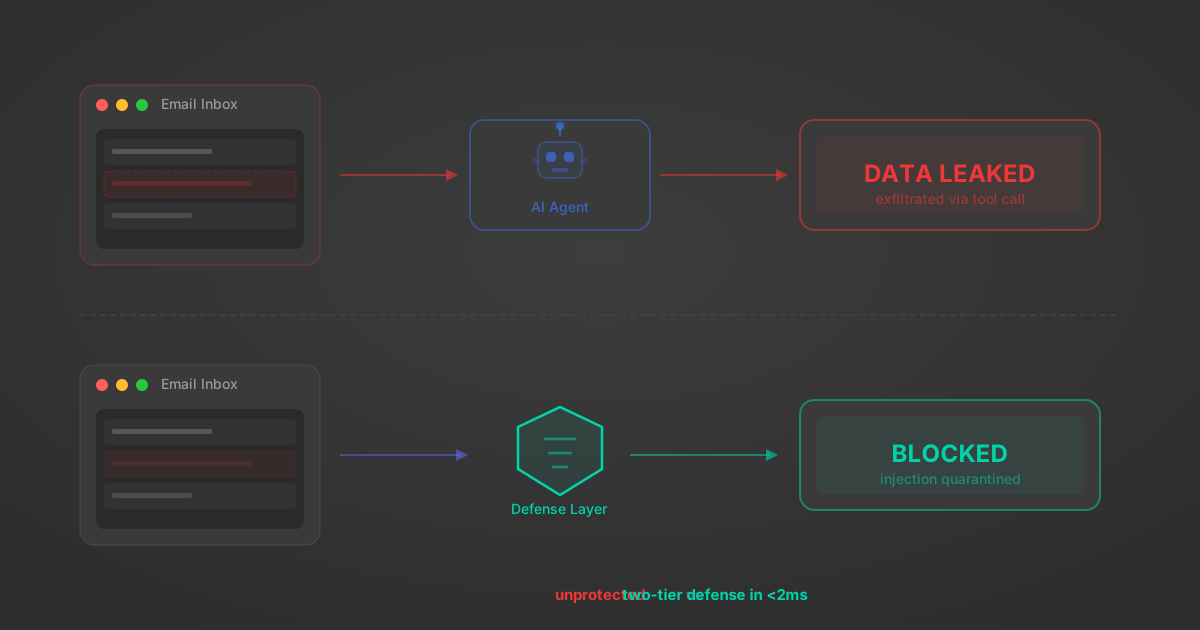
Indirect Prompt Injection Defense for MCP Tools: A Technical Guide
MCP tools that read emails, CRM records, and tickets are indirect prompt injection vectors. Here's how we built a two-tier defense that scans tool results in ~11ms.
12 min
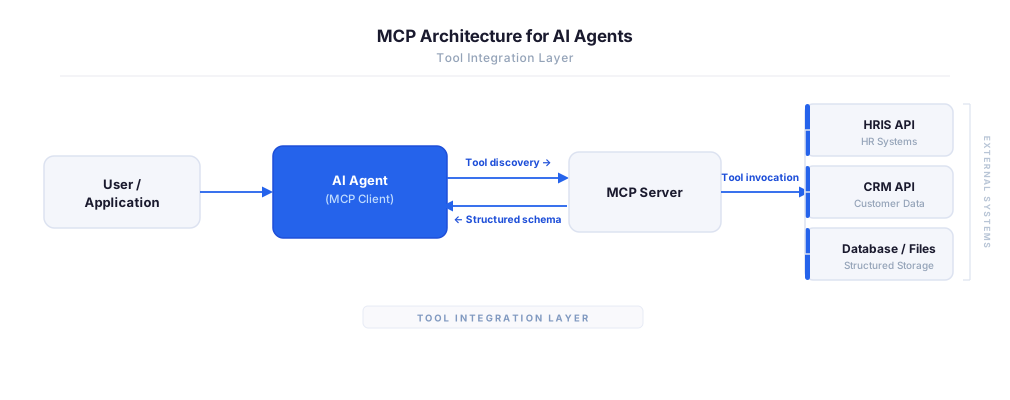
MCP vs A2A: Architecture, Security, and When to Use Each
MCP vs A2A: what each protocol standardizes, how they differ, their shared security risks including indirect prompt injection, and when to use one, both, or a hybrid architecture.
12 min
MCP vs API: What Hundreds of Connector Builds Taught Us
MCP wraps APIs, it doesn't replace them. After building hundreds of connectors that serve both, here's when each approach wins.
14 min read
Box MCP Server FAQ
Does StackOne have a Box MCP server?
Box MCP server vs direct API integration — what's the difference?
How does Box authentication work for AI agents?
origin_owner_id.Are Box MCP tools vulnerable to prompt injection?
What is the context bloat of a Box agent and how do I avoid it?
Can I limit which actions my Box agent can access?
Can I create custom agent actions for my Box MCP server?
When should I NOT use a Box MCP server?
What AI frameworks and AI clients does the StackOne Box MCP server support?
Put your AI agents to work
All the tools you need to build and scale AI agent integrations, with best-in-class connectivity, execution, and security.