Connect
Optimize
Secure
Announcing StackOne Defender: leading open-source prompt injection guard for your agent • Read More →
Production-ready ClickUp MCP server with 92 extensible actions — plus built-in authentication, security, and optimized execution.
 StackOne
Coverage
Create, read, update, and delete across ClickUp — and extend your agent's capabilities with custom actions.

Authentication
Per-user OAuth in one call. Your ClickUp MCP server gets session-scoped tokens with zero credentials stored on your infra.
Agent Auth →
Security
Every ClickUp tool response scanned for prompt injection in milliseconds — 88.7% accuracy, all running on CPU.
Prompt Injection Defense →
Performance
Free up to 96% of your agent's context window to enhance reasoning and reduce cost, on every ClickUp call.
Tools Discovery →A ClickUp MCP server lets AI agents read and write ClickUp data through the Model Context Protocol — Anthropic's open standard for connecting LLMs to external tools. StackOne's ClickUp MCP server ships with 92 pre-built actions, fully extensible via the Connector Builder — plus managed authentication, prompt injection defense, and optimized agent context. Connect it from MCP clients like Claude Desktop, Cursor, and VS Code, or from agent frameworks like OpenAI Agents SDK, LangChain, and Vercel AI SDK.
Every action from ClickUp's API, ready for your agent. Create, read, update, and delete — scoped to exactly what you need.
Create a new task in a list with customizable properties including name, description, assignees, priority, due dates, status, and custom fields.
Retrieve all tasks from a specific list with pagination support and comprehensive task details including status, assignees, and custom fields.
Retrieve complete details of a specific task by ID including all metadata, custom fields, checklists, subtasks, and relationships.
Modify task properties including name, description, status, assignees, dates, priority, and custom fields for an existing task.
Permanently remove a task from the workspace.
Set a task as waiting on or blocking another task to define workflow order and task relationships.
Remove dependency relationship between tasks to update task relationships and remove workflow constraints.
Link two tasks together to create relationships between related tasks for cross-referencing.
Remove link between tasks to update task relationships and remove connections between tasks.
Create a new space in workspace for high-level organization of projects and teams with custom configuration.
Retrieve all spaces in workspace with configuration including features, statuses, and enabled ClickApps.
Get details of a specific space including features, statuses, and enabled ClickApps configuration.
Modify space properties including name, color, settings, and enabled features.
Remove a space and all contained folders, lists, and tasks from workspace permanently.
Create a new folder in a space to organize lists into logical project groups.
Retrieve all folders in a space with metadata including lists and task counts for workspace organization.
Get details of a specific folder including contained lists and folder-level metadata.
Modify folder name and organizational properties for better workspace structure.
Remove a folder and all contained lists and tasks from workspace permanently.
Add a comment to a task with rich text formatting for collaboration and feedback.
Retrieve all comments on a task with author information and timestamps for viewing conversation history.
Add comment to a list for list-level discussions and project notes documentation.
Retrieve comments on a list for viewing list discussions and project notes.
Edit an existing comment's content to correct or update information.
Remove a comment from task or list to clean up discussions and remove outdated information.
Create a time entry with specified start and end times to manually log time worked on tasks.
Edit an existing time entry's duration or details to correct time tracking data and adjust logged hours.
Remove a time entry from records to clean up incorrect time entries and adjust time logs.
Set up a webhook to monitor events in workspace with event filtering for real-time integrations.
List all webhooks configured for workspace to manage webhook integrations and monitor subscriptions.
Modify webhook configuration including events and status for changing webhook subscriptions and endpoint configuration.
Remove a webhook subscription from workspace to disconnect integrations and stop event notifications.
Create a new goal in workspace with targets and owners for tracking organizational objectives and OKRs.
Retrieve all goals in workspace with progress tracking for displaying goal lists and overall progress.
Get details of a specific goal including targets, progress, and completion status for tracking.
Modify goal properties including name, due date, owners, color, and tracking settings.
Remove a goal from workspace to archive completed goals and clean up objectives.
Add a target (key result) to a goal with measurable outcomes for tracking goal progress with specific metrics.
Remove a target from a goal to clean up goal targets and remove obsolete metrics.
Add a checklist to a task for breaking down work into sub-items with assignee and progress tracking.
Modify checklist name and position within task for better organization and workflow.
Remove a checklist from task to clean up completed checklists and simplify task structure.
Add an item to a checklist with assignee and resolution tracking for sub-task management.
Edit checklist item including name, assignee, and resolution status for progress tracking.
Remove an item from checklist to clean up completed items and remove obsolete entries.
Create a new tag in a space with custom name and color for adding categorization options.
Retrieve all tags in a space with colors and names for displaying available categorization options.
Edit tag name and colors for better organization and visual distinction in workspace.
Remove a tag from space to clean up unused tags and simplify categorization options.
Create a custom view at space level with filters, grouping, and sorting for space-wide task visualization.
Retrieve all views configured for a space for listing available visualizations and view options.
Get details of a specific view including filters, grouping, sorting and display settings.
Modify view properties including name, filters, grouping, and sorting for customized data display.
Remove a view from workspace to clean up unused views and simplify interface organization.
Create a new document in workspace for knowledge management, documentation, and project notes.
Retrieve a document's content and metadata for accessing documentation programmatically.
Search and filter documents in workspace with various criteria for finding specific documentation.
Add a new page to a document with content to extend documentation with additional pages.
Retrieve a specific page from document with content for accessing individual page content and metadata.
Create a new user group in workspace with members for organizing users for permissions and notifications management.
Retrieve user groups in workspace with optional filtering by specific group IDs.
Modify user group members and properties for managing team organization and group membership.
Remove a user group from workspace to clean up team structure and remove obsolete groups.
Upload a file to a task as an attachment. Files stored in the cloud cannot be used in this API request.
Create a new list in a folder with custom name, content, and due date configuration for organizing tasks into project stages.
Add a tag label to a task for categorization, filtering, and organization across workspace.
Create a custom view at workspace level for custom data visualizations and workflow displays.
Query tasks across workspace with advanced filtering by spaces, folders, lists, statuses, assignees, tags, dates, and custom fields for powerful task discovery.
Retrieve all lists in a folder with metadata including statuses, task counts, and configuration details.
Retrieve lists in a space that aren't contained in folders for flat organizational structures.
Get detailed information about a specific list including available statuses, task count, and configuration settings.
Get details of authenticated user including permissions, workspace access, and profile information for verification.
Retrieve all workspaces that the authenticated user has access to.
View the used, total, and available member and guest seats for a Workspace.
View the current plan for the specified Workspace.
Retrieve time entries with filtering by date range, assignee, and location for generating time reports and timesheets.
Get custom fields configured for a specific space with field definitions and options.
Get custom fields available for tasks in a specific list with field metadata and validation.
Retrieve tasks displayed in a view with applied filters for custom views and dashboards.
Retrieve hierarchical listing of all pages within a document for navigating document structure.
Retrieve members with access to a specific list for viewing list collaborators and permission levels.
Retrieve members with access to a specific task for viewing task collaborators and permission levels.
View task templates available in workspace with pagination for listing reusable task templates for standardized task creation.
Retrieve custom task types configured for workspace for getting available task type options (tasks, milestones, etc.).
Retrieve shared workspace structure including spaces, folders, and lists accessible to user for viewing shared resources.
Modify list properties including name, content, color, priority, assignee, and due dates.
Remove a list and all contained tasks from the workspace permanently.
Remove a tag from a task to update categorization and remove outdated labels.
Start a timer for the authenticated user on a task to track real-time work duration.
Stop currently running timer for authenticated user to complete time tracking session and record duration.
Update a target's properties and progress values for tracking progress toward goal targets and updating metrics.
Update page content and properties for maintaining documentation and updating page content.
One endpoint. Any framework. Your agent is talking to ClickUp in under 10 lines of code.
MCP Clients
Agent Frameworks

 JSON
JSON{
"mcpServers": {
"stackone": {
"command": "npx",
"args": [
"-y",
"mcp-remote@latest",
"https://api.stackone.com/mcp?x-account-id=<account_id>",
"--header",
"Authorization: Basic <YOUR_BASE64_TOKEN>"
]
}
}
}172+ actions
134+ actions
134+ actions
133+ actions
133+ actions
126+ actions
125+ actions
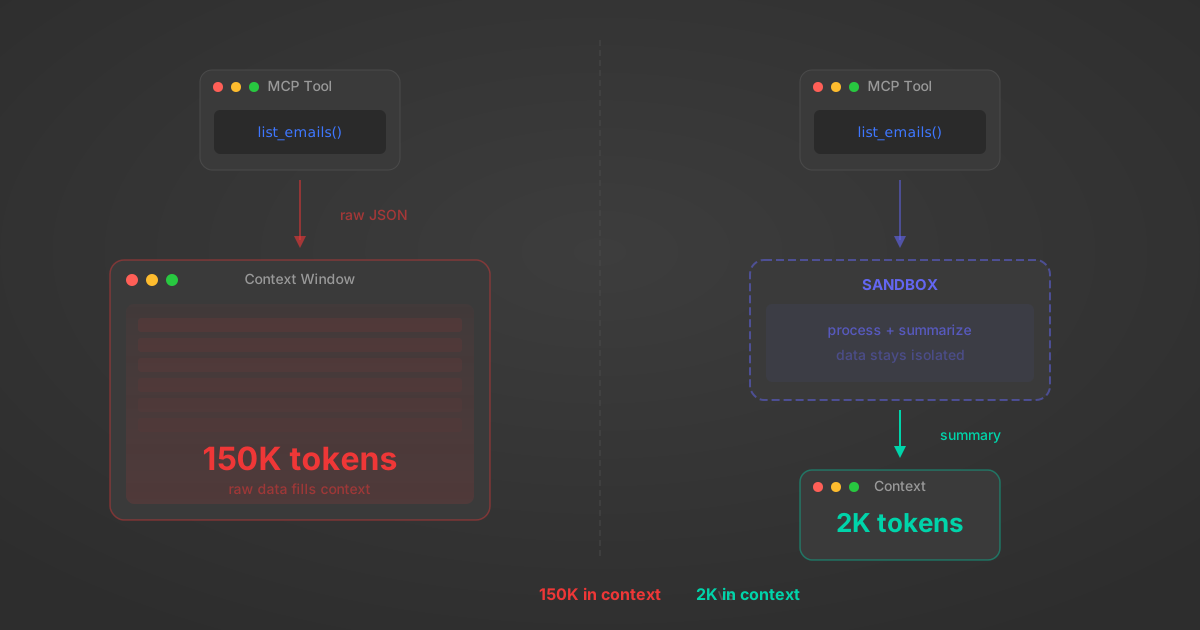
Anthropic's code_execution processes data already in context. Custom MCP code mode keeps raw tool responses in a sandbox. 14K tokens vs 500.
11 min
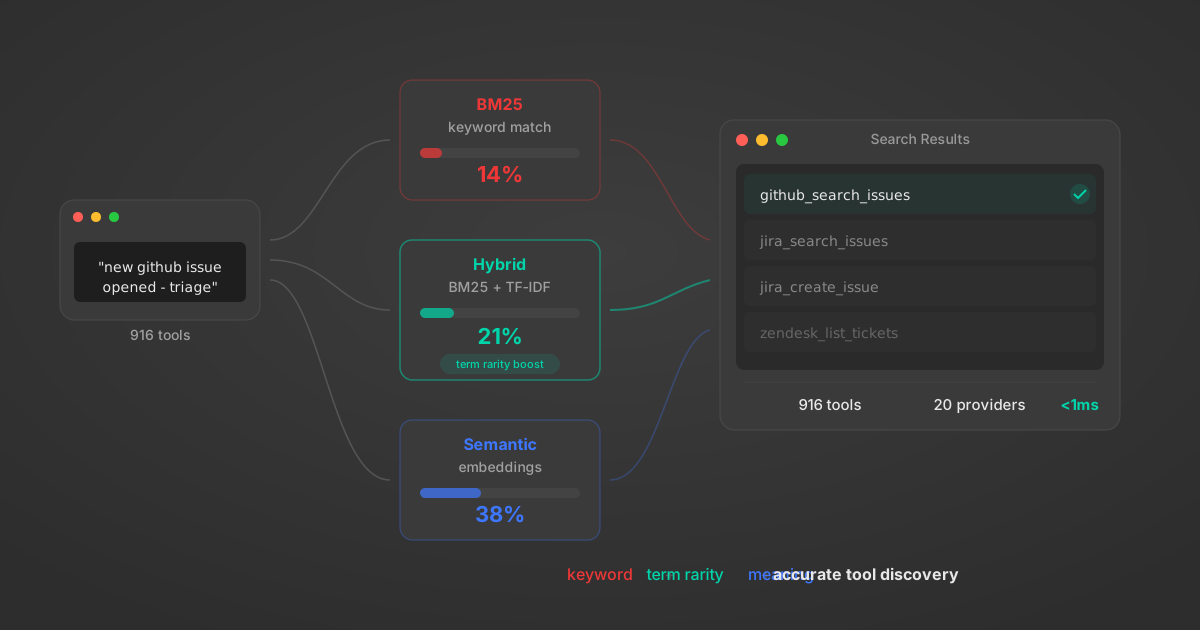
Benchmarking BM25, TF-IDF, and hybrid search for MCP tool discovery across 916 tools. The 80/20 TF-IDF/BM25 hybrid hits 21% Top-1 accuracy in under 1ms.
10 min
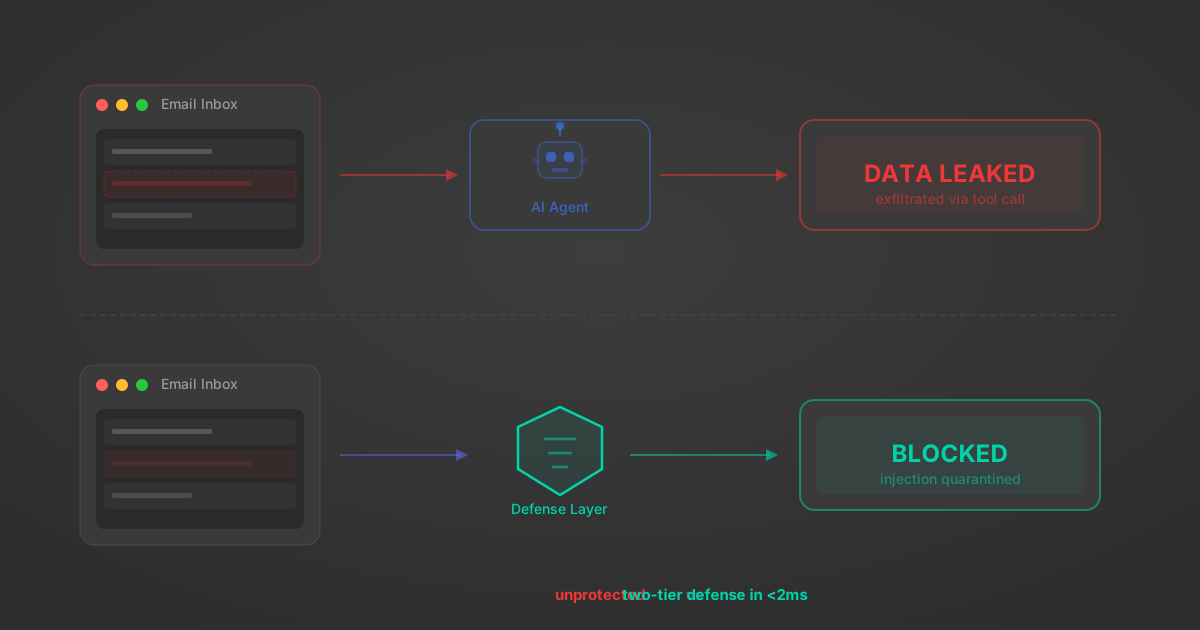
MCP tools that read emails, CRM records, and tickets are indirect prompt injection vectors. Here's how we built a two-tier defense that scans tool results in ~11ms.
12 min
origin_owner_id.All the tools you need to build and scale AI agent integrations, with best-in-class connectivity, execution, and security.