Announcing StackOne Defender: leading open-source prompt injection guard for your agent Read More

Dropbox MCP Server
for AI Agents

Production-ready Dropbox MCP server with 82 extensible actions — plus built-in authentication, security, and optimized execution.

Dropbox logo
Dropbox MCP Server
Built by StackOne StackOne

Coverage

82 Agent Actions

Create, read, update, and delete across Dropbox — and extend your agent's capabilities with custom actions.

Authentication

Agent Tool Authentication

Per-user OAuth in one call. Your Dropbox MCP server gets session-scoped tokens with zero credentials stored on your infra.

Agent Auth →

Security

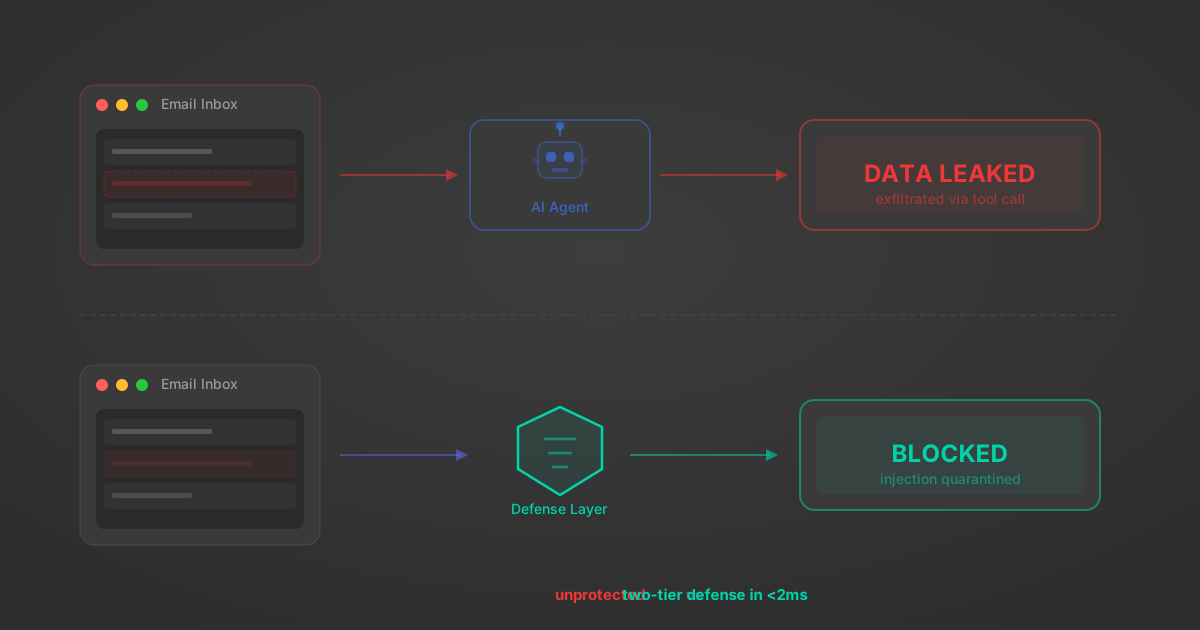
Agent Protection

Every Dropbox tool response scanned for prompt injection in milliseconds — 88.7% accuracy, all running on CPU.

Prompt Injection Defense →

Performance

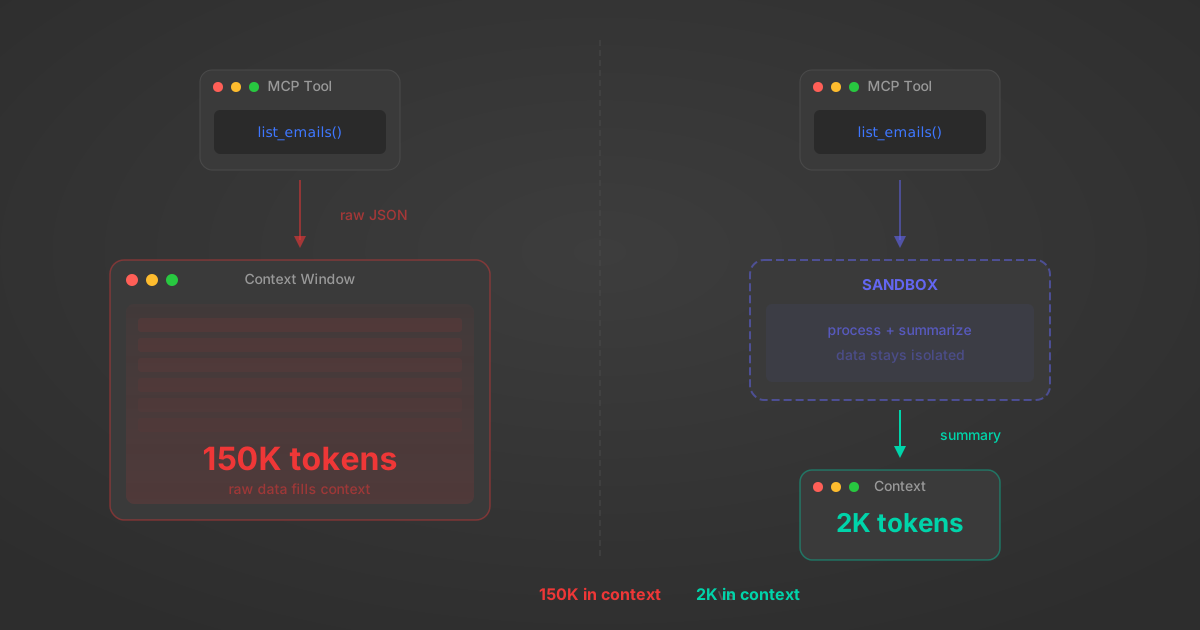
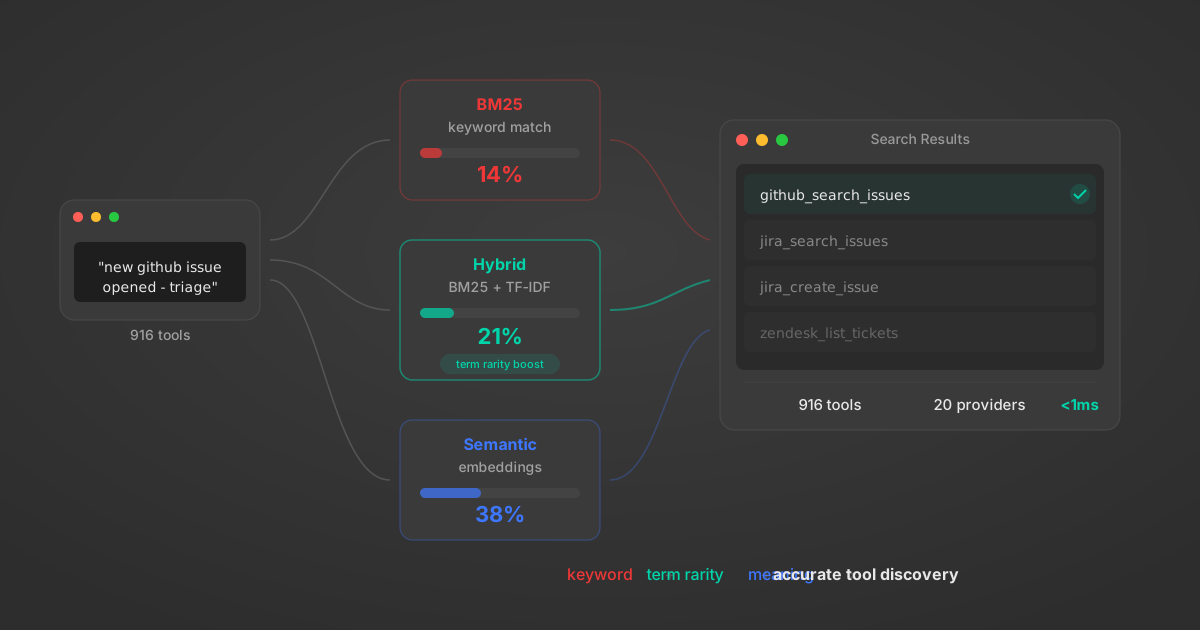
Max Agent Context. Min Cost.

Free up to 96% of your agent's context window to enhance reasoning and reduce cost, on every Dropbox call.

Tools Discovery →

What is the Dropbox MCP Server?

A Dropbox MCP server lets AI agents read and write Dropbox data through the Model Context Protocol — Anthropic's open standard for connecting LLMs to external tools. StackOne's Dropbox MCP server ships with 82 pre-built actions, fully extensible via the Connector Builder — plus managed authentication, prompt injection defense, and optimized agent context. Connect it from MCP clients like Claude Desktop, Cursor, and VS Code, or from agent frameworks like OpenAI Agents SDK, LangChain, and Vercel AI SDK.

All Dropbox MCP Tools and Actions

Every action from Dropbox's API, ready for your agent. Create, read, update, and delete — scoped to exactly what you need.

Folders

  • Create Folder

    Create a new folder

  • List Folder

    List files and folders in a Dropbox path

Property Templates

  • Create Property Template

    Create a custom property template for files and folders

  • Delete Property Template

    Permanently remove a property template and its associated properties

File Requests

  • Create File Request

    Create a new file request to collect files from others

  • Get File Request

    Retrieve detailed information about a specific file request

  • List File Requests

    Retrieve all file requests owned by your account

  • Update File Request

    Modify settings of an existing file request

  • Delete File Request

    Remove closed file requests by IDs

Checks

  • Copy Batch Check

    Check the status of a batch copy job

  • Move Batch Check

    Check the status of a batch move job

  • Delete Batch Check

    Check the status of a batch delete job

Files

  • Export File

    Export a Dropbox Paper or cloud-native file in a specified format

  • Download File

    Download a file from a user's Dropbox

Shared Links

  • Create Shared Link

    Create a shared link for a file or folder

  • List Shared Links

    List shared links

Folder Members

  • Add Folder Member

    Add members to a shared folder

  • List Folder Members

    List all members with access to a shared folder

  • Update Folder Member

    Update a member's access to a shared folder

  • Remove Folder Member

    Remove a member from a shared folder

File Members

  • Add File Member

    Add a member to a shared file

  • List File Members

    List members with access to a shared file

  • Update File Member

    Update a member's access to a shared file

  • Remove File Member

    Remove a member from a shared file

Other (58)

  • Add Tag To Item

    Add a tag to a file or folder

  • Copy

    Copy a file or folder

  • Copy Batch

    Copy multiple files or folders

  • Get Latest Cursor

    Get a cursor for the latest folder state

  • List Folder Continue

    Continue listing folder contents

  • List Revisions

    List file revisions

  • Get Property Template Details

    Retrieve the structure and fields of a property template

  • Get Item Tags

    Retrieve all tags assigned to files or folders

  • Get Copy Reference

    Get a copy reference for a file

  • Get Metadata

    Get metadata for a file or folder

  • Search

    Search for files and folders

  • Get Temporary Upload Link

    Get a one-time use link for uploading a file

  • Get Temporary Link

    Get a temporary link to a file

  • Download Folder As Zip

    Download a folder from Dropbox as a zip file

  • Get Preview

    Get a preview for a file

  • Get Thumbnail

    Get a thumbnail for an image

  • Search Continue

    Continue a file search

  • Get File Lock Batch

    Get file lock status for multiple files

  • Get Shared Link Metadata

    Get metadata for a shared link

  • Get Folder Metadata

    Get metadata for a shared folder

  • List Folder Members Continue

    Continue listing shared folder members

  • List File Members Batch

    List members for multiple shared files

  • List File Members Continue

    Continue listing shared file members

  • Get Shared File Metadata

    Get metadata for a shared file

  • Get Shared File Metadata Batch

    Get metadata for multiple shared files

  • Get Shared Link File

    Download a file from a shared link

  • List Shared Folders

    List shared folders

  • List Shared Folders Continue

    Continue listing shared folders

  • List Mountable Folders

    List mountable shared folders

  • List Shared Mountable Folders Continue

    Continue listing shared mountable folders

  • List Shared Received Files

    List shared received files

  • List Shared Received Files Continue

    Continue listing shared received files

  • Move

    Move or rename a file or folder

  • Move Batch

    Move multiple files or folders

  • Update Folder Policy

    Update sharing policies for a shared folder

  • Set Profile Photo

    Set a user's profile photo with a base64 encoded image

  • Remove Tag From Item

    Remove a tag from a file or folder

  • Delete All Closed File Requests

    Bulk delete all closed file requests in your account

  • Delete

    Delete a file or folder

  • Delete Batch

    Delete multiple files or folders

  • File Request Count

    Get total count of all file requests in your account

  • Continue File Request List

    Get the next page of file requests using pagination cursor

  • Save Copy Reference

    Save a copy reference to a destination

  • Restore File

    Restore a file to a previous revision

  • Save URL

    Save a file from a URL to Dropbox

  • Unlock File Batch

    Unlock multiple files

  • Lock File Batch

    Lock multiple files

  • Revoke Shared Link

    Revoke a shared link by URL

  • Share Folder

    Share a folder with team members or external users

  • Modify Shared Link Settings

    Modify shared link settings

  • Check Share Job Status

    Check the status of a sharing job

  • Check Share Folder Job Status

    Check the status of a share folder job

  • Check Remove Member Job Status

    Check the status of a remove member job

  • Unshare File

    Unshare a file

  • Unshare Folder

    Unshare a folder

  • Mount Folder

    Mount a shared folder

  • Unmount Folder

    Unmount a shared folder

  • Check User

    Validate the access token and confirm Dropbox API connectivity

Set Up Your Dropbox MCP Server in Minutes

One endpoint. Any framework. Your agent is talking to Dropbox in under 10 lines of code.

MCP Clients

Agent Frameworks

Claude Desktop
{
  "mcpServers": {
    "stackone": {
      "command": "npx",
      "args": [
        "-y",
        "mcp-remote@latest",
        "https://api.stackone.com/mcp?x-account-id=<account_id>",
        "--header",
        "Authorization: Basic <YOUR_BASE64_TOKEN>"
      ]
    }
  }
}

More Cloud Storage MCP Servers

Dropbox MCP Server FAQ

Dropbox MCP server vs direct API integration — what's the difference?
A Dropbox MCP server and direct API integration serve different use cases. Direct API integration is for software-to-software — backend code calling Dropbox. A Dropbox MCP server is for AI agents — MCP clients like Claude and Cursor, plus framework agents built with OpenAI, LangChain, or Vercel AI — discovering and calling Dropbox at runtime. StackOne provides both.
How does Dropbox authentication work for AI agents?
Dropbox authentication for AI agents works through a StackOne Connect Session. Create one via the dashboard or the SDK — you get an auth link and ready-to-paste config for Claude Desktop, Cursor, and other MCP clients. Your user authenticates their own Dropbox account; StackOne handles token exchange, storage, and refresh. Credentials never reach the LLM, and each user is isolated via origin_owner_id.
Are Dropbox MCP tools vulnerable to prompt injection?
Yes — Dropbox MCP tools can be vulnerable to indirect prompt injection. Any tool that reads user-written content — documents, messages, tickets, records, or free-text fields — is a potential vector. StackOne Defender scans every tool response before it enters the agent's context — regex patterns in ~1ms, then a MiniLM classifier in ~4ms. 88.7% accuracy, CPU-only.
What is the context bloat of a Dropbox agent and how do I avoid it?
Context bloat happens when Dropbox tool schemas and API responses eat your Dropbox agent's memory, preventing it from reasoning effectively. A single Dropbox query can return a massive JSON response, and connecting multiple tools compounds the problem. Tools Discovery and Code Mode reduce context bloat — loading only relevant tools per query and keeping raw responses out of the agent's context.
Can I limit which actions my Dropbox agent can access?
Yes — you can limit which actions your Dropbox agent can access directly from the StackOne dashboard. Toggle actions on or off, or restrict them to specific accounts, with no code changes to your agent. Session tokens can be scoped to exact actions so if one leaks, exposure stays contained.
Can I create custom agent actions for my Dropbox MCP server?
Yes — you can create custom agent actions for your Dropbox MCP server using Connector Builder. It's an integration agent your coding assistant (Claude Code, Cursor, or Copilot) can invoke to research Dropbox's API, generate production-ready connector YAML, test against the live API, and validate before you ship.
When should I NOT use a Dropbox MCP server?
Skip a Dropbox MCP server if your integration is purely software-to-software — direct Dropbox API integration is simpler when no AI agent is involved. For deterministic, compliance-critical operations (financial transactions, regulatory reporting), direct API gives you predictable behavior without agent-driven decision-making. MCP shines when AI agents need to dynamically discover and call Dropbox actions at runtime.
What AI frameworks and AI clients does the StackOne Dropbox MCP server support?
The StackOne Dropbox MCP server supports both. MCP clients (paste-and-go apps): Claude Desktop, Claude Code, Cursor, VS Code, Goose. Agent frameworks (code SDKs you build with): OpenAI Agents SDK, Anthropic, Vercel AI, Google ADK, CrewAI, Pydantic AI, LangChain, LangGraph, Azure AI Foundry.

Put your AI agents to work

All the tools you need to build and scale AI agent integrations, with best-in-class connectivity, execution, and security.